External hard drives are one of the prominent storage devices, known for their convenience and ease of file management. You can easily save your photos, videos, and other files on an external drive. However, sometimes you may encounter issues when the photos stored on your external drive get deleted. Losing photos can be distressing, especially if it is very important.
Fortunately, there are several photo recovery workarounds available that you can try to restore photos lost from these drives. This guide will walk you through all the reasons for photo loss, effective methods to recover deleted photos, and preventive tips to ensure your photos remain safe in the future. So, let’s get started!
Is It Possible to Recover Photos Deleted from External Hard Drives?
Yes, whether you have backup or not, recovery of photos lost from an external hard drive is possible in each scenario. When a photo is deleted, it isn’t immediately removed from the drive – instead, the space the deleted photo was occupying will be marked as available for new data. Until the space is overwritten by new files, photo recovery is easily possible.
To increase the chances of successful recovery, you can consider the following tips:
- Stop using the external hard drive immediately after data loss.
- Avoid saving new files on your external hard drive when you find any data missing on it.
- Always go for a reliable photo recovery software to restore your deleted photos.
Common Reasons for Photo Loss from an External Drive
Before you use any photo recovery software or apply manual methods to restore your lost photos, try finding the exact cause of your photo loss. Some main reasons why photos get deleted from an external hard drive include:
- Accidental Deletion: One of the common reasons for photo loss is accidental deletion, i.e., you might have accidentally deleted photos while removing other files and folders from the drive.
- Drive Formatting: Formatting the external hard drive, especially without any proper backup, erases all stored files, including your photos.
- File System Corruption: Issues like improper ejection, sudden power failure, or malware attack may corrupt the file system, making the driver and its stored content inaccessible.
- Virus or Malware Attacks: Malicious programs, like viruses or malware, can infect your external hard drive and hide, corrupt, or delete your photos.
- Improper Ejection or Sudden Disconnection: Disconnecting your external drive during data transfer or without using the “Safely Remove” option can corrupt it, resulting in missing or unreadable photos.
Quick Methods to Recover Photos From an External Hard Drive
Now that you are familiar with some probable reasons for photo loss from your external hard drive, it’s time to check out adequate recovery workarounds. Here are several effective methods to help you recover deleted, lost, or inaccessible photos from your external drive:
Method 01: Recover Using Photo Recovery Software
Let’s start with the simplest approach first. If you are looking for an easy and direct method to recover photos from an external hard drive, then third-party photo recovery software like Stellar Photo Recovery is the best choice. This professional photo recovery tool allows you to restore photos deleted due to accidental deletion, formatting, system errors, and other reasons. Not only photos, you can use this tool to even recover deleted videos and audio files of several file formats.
The Stellar Photo Recovery software is compatible with both Windows and macOS devices. The software supports recovery of deleted files (including your photos) in three simple steps i.e., Select, Scan, and Recovery. The preview functionality of this software allows you to preview the recovered files before saving them on your device.
Here’s how to recover photos from an external hard drive using the Stellar Photo Recovery tool:
Step 1: Firstly, download and install the Stellar Photo Recovery software on your Windows PC/Mac. Launch the software and from the homepage, select Photos (or the file type you need to restore) and click Next.
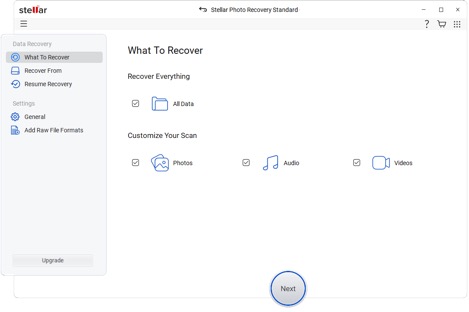
Step 2: Now, select your external hard drive from the list of connected devices from where you need to recover deleted photos. Click Scan to initiate the scanning process.
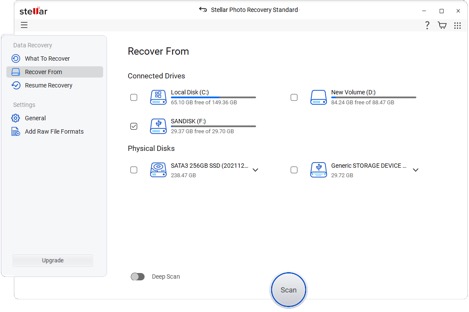
Step 3: Once the scan is complete, preview the recoverable photos. Select the desired photos and click Recover to save them to a different location (not on the same drive).
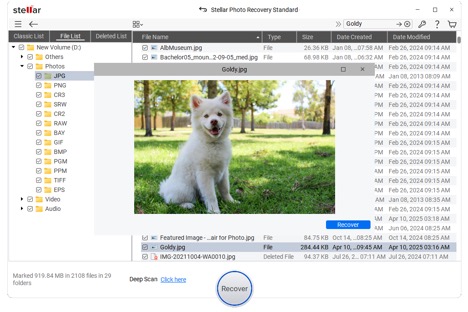
This method is the most reliable and suitable for users who have lost important or large photo collections.
Method 02: Recover Photos Using File History Backups
If you are good at maintaining regular backups of your files, then these backups can be the best way to recover lost photos. You can use File History (on Windows) or Time Machine (on Mac) backup utility to create the backup and restore lost files. All you have to do is:
Recover Photos on Windows (Using File History):
- Firstly, connect the external hard drive to your Windows PC.
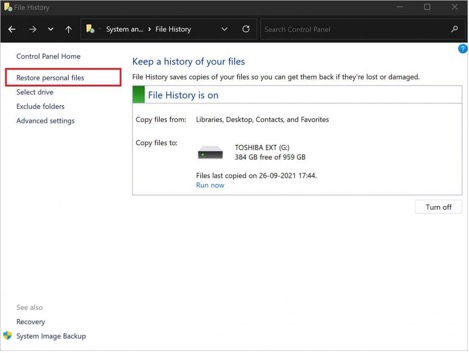
- Launch Control Panel, go to System and Security > File History.
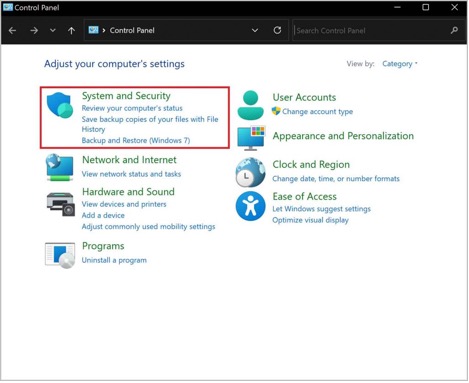
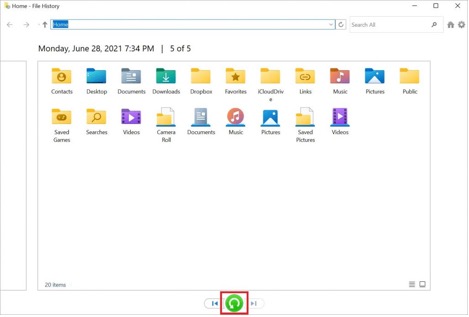
- Select Restore personal files and locate the photos you want to restore.
- Once found, click Restore to save them at the desired location.
Recover Photos on Mac (Using Time Machine):
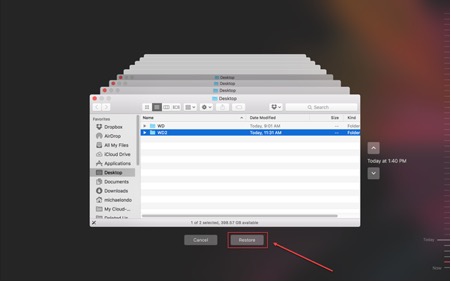
- Connect your external drive and launch Time Machine.
- Go to the date before your photo loss occurred.
- Select all the required files and click Restore.
Method 03: Recover Photos From Corrupted Hard Drive
Sometimes, it’s the hard drive itself which prevents you from accessing its stored files, including your photos. If your drive is detected but inaccessible or showing errors, it may be corrupted. In such a case, you can follow the below steps to fix the corrupt/damaged hard drive:
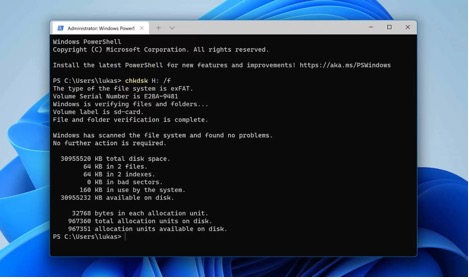
- Launch Command Prompt on your Windows device.
- Type the command: chkdsk E: /r and press the Enter key.
- This command scans your drive for bad sectors and repairs file system errors.
Preventive Tips to Avoid Photo Loss in the Future
While photo recovery is quite easy using the aforementioned methods, try avoiding such photo loss issues on your external hard drive. Follow these simple tips to avoid losing your precious photos again:
- Create Regular Backups: Maintaining regular backups of your important photos on cloud storage (like Google Drive or OneDrive) or an external storage device can help in easy recovery.
- Handle the Drive Carefully: Avoid dropping, overheating, or shaking your external hard drive. Mechanical drives are sensitive to physical impact.
- Eject Safely: Always use the “Safely Remove Hardware” option before disconnecting the external drive from your system.
- Use Reliable Antivirus Software: Protect your device from malicious bugs using a reliable antivirus tool.
- Avoid Overloading the Drive: Keeping your drive near full capacity can slow it down and increase the risk of corruption.
Wrapping Up
When you find any photo missing from your external hard drive, go with the aforementioned photo recovery methods one by one to get those photos back. Start with basic workarounds like checking the Recycle Bin folder or previously created backups. If these methods fail, go with third-party photo recovery software tools like Stellar Photo Recovery to get your pictures back. Remember to stop using the affected drive immediately after data loss to prevent further data loss or overwriting. Additionally, consider preventive measures such as creating multiple backups and properly managing your drive to prevent future data loss.

